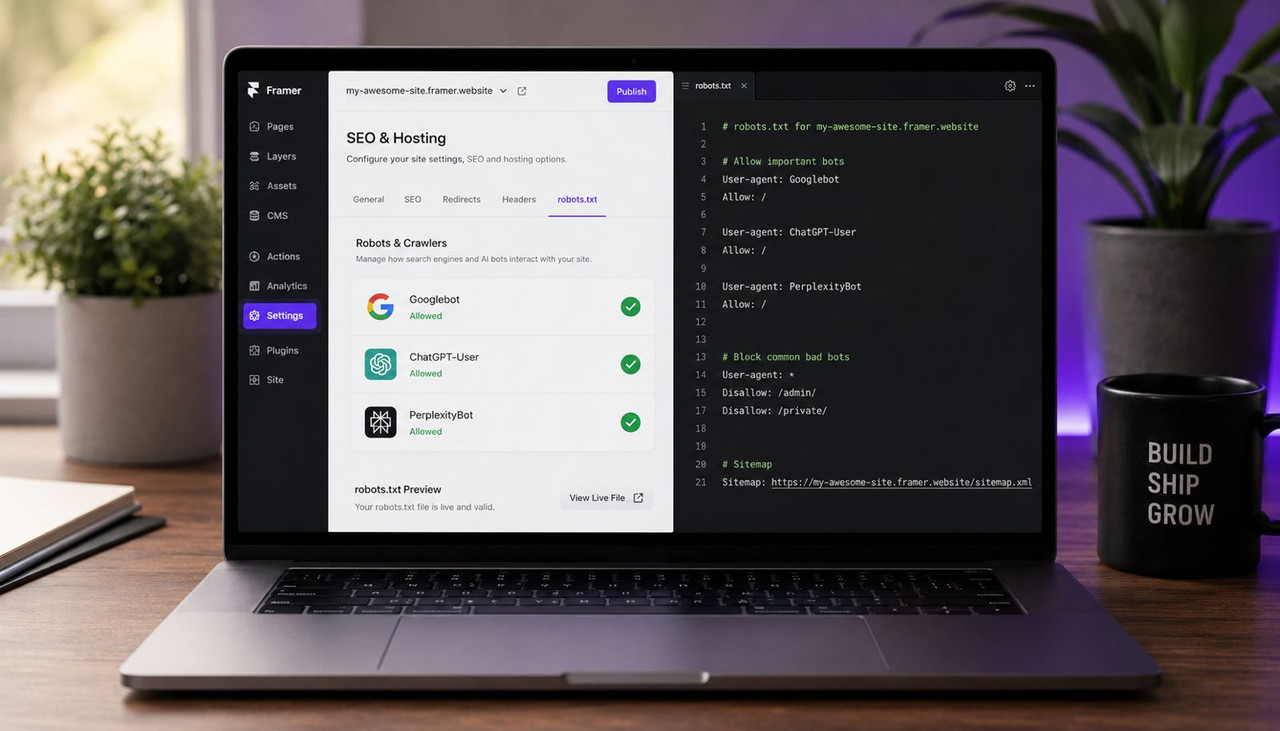
You configure your Framer website's robots.txt for ChatGPT, Google, and Perplexity by uploading a custom file through the Files tab under Domains in your Framer workspace not through Site Settings, not through any SEO panel, and not through Project Settings. Those interfaces no longer exist for this purpose. According to Oma-Kase's May 2026 guide built from live dashboard screenshots, Framer launched a Static Files feature on March 23, 2026, that moved all well-known file uploads into a dedicated Files tab inside the Domains section. Every guide published before that date — including guides that say robots.txt "cannot be edited" in Framer — describes a workflow that no longer matches any live Framer dashboard. This article covers the current process, the complete AI bot directive list for 2026, and three ready-to-paste configurations depending on how much access you want to give AI systems.
Key Takeaways
- Framer auto-generates a default robots.txt for every published site. You cannot edit that auto-generated file in place — but since March 23, 2026, you can upload your own robots.txt through the Files tab under Domains, and your file completely overrides the Framer default. According to Framer's official robots.txt help page updated May 20, 2026, this Static Files upload is available on Pro, Scale, and Enterprise plans.
- In 2026, there are nine AI bot user-agents worth addressing in your Framer robots.txt: GPTBot and OAI-SearchBot and ChatGPT-User from OpenAI, ClaudeBot and anthropic-ai from Anthropic, PerplexityBot and Perplexity-User from Perplexity AI, Google-Extended from Google, and Meta-ExternalAgent from Meta. Each is a separate directive. Blocking one has zero effect on the others.
- The most consequential distinction in 2026 is between training bots and retrieval bots. GPTBot is a training crawler — blocking it stops your content entering OpenAI's model training data. OAI-SearchBot is a retrieval crawler — blocking it removes your site from ChatGPT search answers entirely. According to AppearOnAI's April 2026 crawler configuration guide, these require completely separate directives and most site owners who block GPTBot assume they have handled ChatGPT access without realizing OAI-SearchBot is a separate system.
- Google-Extended is Google's dedicated user-agent for controlling whether your content feeds Gemini and Google's generative AI products. Blocking Google-Extended has zero effect on standard Googlebot indexing. Your site can appear in Google Search while being excluded from Gemini training simultaneously — these are independent directives.
- According to SEO-Kreativ's April 2026 robots.txt guide, robots.txt is a request, not a technical barrier. Reputable providers including OpenAI, Anthropic, and Perplexity have publicly stated they respect robots.txt directives — but the file controls access, not indexing. For indexing control, noindex meta tags are the correct mechanism.
Why Every Framer robots.txt Guide Published Before March 2026 Is Wrong
Every guide that tells you to go to Project Settings, Site Settings, or an SEO panel to configure your Framer robots.txt is describing an interface that changed when Framer launched Static Files on March 23, 2026. This is not a minor UI update — it moved the entire well-known file management workflow into a completely different location. If you follow an outdated guide, you will spend time looking for panels that simply are not there anymore.
Before March 2026, Framer handled well-known files through a section inside Site Settings or Project Settings depending on the plan tier and interface version. Some guides described it as being under an "Advanced SEO" panel. Others declared it entirely uneditable and recommended Cloudflare Worker workarounds. According to Oma-Kase's confirmed live dashboard documentation, all of that changed when Static Files launched. The feature consolidated llms.txt, robots.txt, security.txt, and any other root-level file upload into a single Files tab inside the Domains section of your workspace. Framer's own help documentation had not fully caught up with this change as of late May 2026 — the dedicated robots.txt help page still describes the file as auto-generated in some sections, despite the Static Files feature making custom uploads available for several weeks.
The practical consequence for any Framer site owner trying to configure AI bot access is simple: ignore any guide that does not specifically reference the Files tab under Domains or the March 23, 2026 Static Files launch. The steps in this article are based on the current workflow confirmed from a live Framer dashboard, not from documentation that predates the feature update.
The Complete AI Bot Directory: What Each User-Agent Does in 2026
Before writing a single directive in your robots.txt file, you need to know what each AI bot user-agent does — because a directive written for the wrong bot produces the opposite of the result you intend. The nine user-agents worth addressing in 2026 fall into two categories: training bots that collect content to improve AI models, and retrieval bots that fetch content to power real-time AI search answers.
OpenAI bots (three separate user-agents): GPTBot is OpenAI's training crawler. It collects content to improve ChatGPT's foundational knowledge. Blocking it prevents your content from entering OpenAI's training datasets. OAI-SearchBot is OpenAI's live retrieval crawler. It builds the index that powers ChatGPT's real-time web search feature. Blocking it removes your site from ChatGPT search answers and citations entirely. ChatGPT-User is triggered when a real user asks ChatGPT to visit a specific URL. According to AppearOnAI's April 2026 guide, allowing OAI-SearchBot is the directive that determines whether your site appears in real-time ChatGPT answers — and it requires its own explicit directive, completely separate from GPTBot.
Anthropic bots (two user-agents): ClaudeBot is Anthropic's primary training and retrieval crawler. anthropic-ai is an older Anthropic crawler token that some configurations still encounter. Both can be addressed with separate directives or combined under a wildcard if your strategy treats all Anthropic crawlers identically.
Perplexity bots (two user-agents): PerplexityBot powers Perplexity AI's answer engine. According to AppearOnAI's guide, allowing PerplexityBot is often the fastest path to appearing as a cited source in Perplexity responses, because Perplexity is citation-driven by design. Perplexity-User is the real-time retrieval variant triggered by live user queries.
Google-Extended: This is Google's dedicated token for controlling whether your content feeds Gemini and Google's generative AI products. According to SEO-Kreativ's April 2026 robots.txt guide, Google-Extended only affects Gemini and Google AI training. Standard Googlebot indexing and Google Search rankings are completely unaffected by Google-Extended directives. You can block Google-Extended while allowing Googlebot and your search rankings remain exactly as they are.
Meta-ExternalAgent: Meta AI's crawler for its assistant products across Facebook, Instagram, and WhatsApp. Lower priority than the OpenAI, Anthropic, and Perplexity bots for most business websites, but worth including in your allow directives if Meta AI citation is part of your visibility strategy.
How to Upload a Custom robots.txt to Framer in 2026: The Exact Steps
The upload process uses Framer's Static Files feature, launched March 23, 2026. The workflow requires a paid Framer plan — Pro, Scale, or Enterprise — as the Files tab does not appear for domains on free plans. Verify your current plan gate at framer.com/pricing before starting, as Framer's documentation lists different tiers on different pages.
Step 1: Open your Framer workspace. In the left sidebar, locate the Domains section. Click the domain row itself — for example www.yoursite.com. The word "Domains" above it is a section label, not a clickable button. Clicking the domain row opens the domain management panel.
Step 2: In the panel that opens, click the Files tab across the top. You will see the tab description reads: "Upload well-known files like robots.txt, security.txt, or llms.txt, or serve any static file on a fixed URL." This is the correct location.
Step 3: Click the plus button to upload. Select your robots.txt file from your local machine. Framer automatically sets the path to /robots.txt — you do not need to type the path. Leave it exactly as Framer sets it.
Step 4: Open your Framer project and publish it. The file is not live until you publish. There is no publish button on the workspace dashboard — you must open the project in the editor and publish from inside. After publishing, verify by visiting yourdomain.com/robots.txt in a browser and confirming you see your custom file content rather than the Framer default. If you see a 404, confirm you published the project after completing the upload. According to Oma-Kase's workflow guide, the uploaded file overrides Framer's auto-generated robots.txt completely once the project is published — your version becomes the live file your domain serves to all crawlers.
Three Ready-to-Paste robots.txt Configurations for Framer Sites
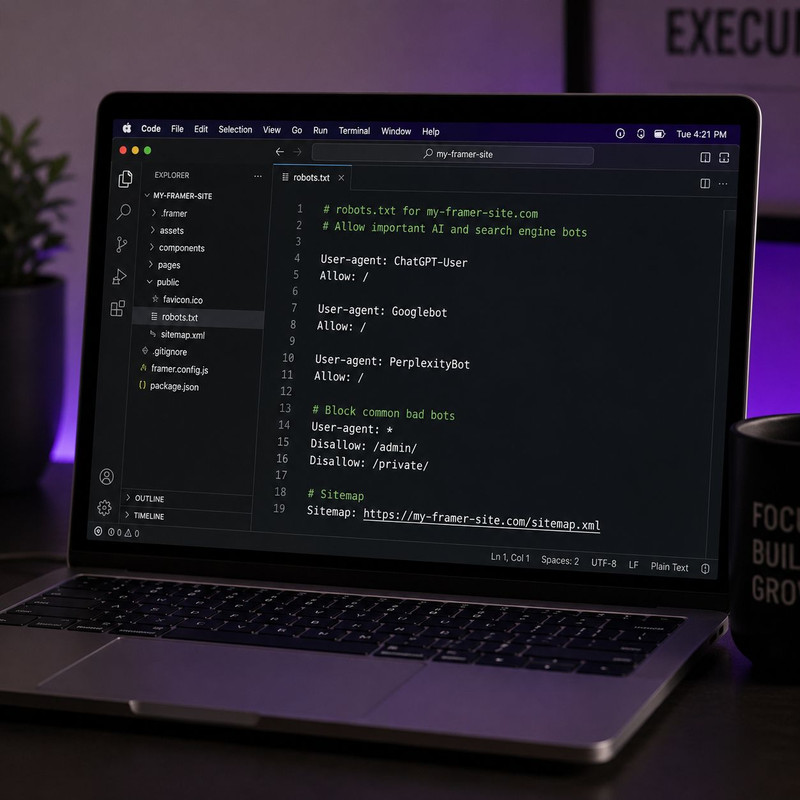
The correct robots.txt configuration for your Framer site depends on your strategy toward AI training data versus AI search citations. These are different decisions and the right configuration for one does not automatically serve the other. Here are three complete configurations covering the most common strategies — copy, save as robots.txt, and upload through the Files tab.
Configuration 1: Maximum AI visibility — allow everything. Use this if you want your Framer site to appear in ChatGPT search, Perplexity citations, Claude responses, Google AI Overviews, and to contribute to AI training data. This is the recommended configuration for content-focused marketing sites, SaaS landing pages, and any business whose primary goal is AI citation frequency across all platforms.
User-agent: *
Allow: /

User-agent: Googlebot
Allow: /

User-agent: GPTBot
Allow: /

User-agent: OAI-SearchBot
Allow: /

User-agent: ChatGPT-User
Allow: /

User-agent: ClaudeBot
Allow: /

User-agent: anthropic-ai
Allow: /

User-agent: PerplexityBot
Allow: /

User-agent: Perplexity-User
Allow: /

User-agent: Google-Extended
Allow: /

User-agent: Meta-ExternalAgent
Allow: /

Sitemap: https://www.yourdomain.com/sitemap.xml
Configuration 2: AI search citations without training data — the most common strategy for founders. Use this if you want to appear in ChatGPT search results and Perplexity citations but do not want your content used to train AI models. According to iToolverse's May 2026 robots.txt guide, this is the configuration that most businesses publishing original proprietary content choose — blocking training crawlers while explicitly allowing retrieval bots that drive real-time search citations.
User-agent: *
Allow: /
Disallow: /admin/

User-agent: Googlebot
Allow: /

User-agent: OAI-SearchBot
Allow: /

User-agent: ChatGPT-User
Allow: /

User-agent: PerplexityBot
Allow: /

User-agent: Perplexity-User
Allow: /

User-agent: Claude-SearchBot
Allow: /

User-agent: GPTBot
Disallow: /

User-agent: ClaudeBot
Disallow: /

User-agent: anthropic-ai
Disallow: /

User-agent: Google-Extended
Disallow: /

User-agent: CCBot
Disallow: /

User-agent: Bytespider
Disallow: /

Sitemap: https://www.yourdomain.com/sitemap.xml
Configuration 3: Google Search only — block all AI crawlers. Use this if you want traditional Google Search indexing and rankings but want zero AI system access to your content. According to Open Shadow's March 2026 AI bot guide, choosing this configuration means your site will not appear in AI-powered search results including Perplexity, ChatGPT search, and Google AI Overviews — it is the right choice only if AI citation is not a visibility goal.
User-agent: *
Allow: /

User-agent: Googlebot
Allow: /

User-agent: GPTBot
Disallow: /

User-agent: OAI-SearchBot
Disallow: /

User-agent: ChatGPT-User
Disallow: /

User-agent: ClaudeBot
Disallow: /

User-agent: anthropic-ai
Disallow: /

User-agent: PerplexityBot
Disallow: /

User-agent: Perplexity-User
Disallow: /

User-agent: Google-Extended
Disallow: /

User-agent: Meta-ExternalAgent
Disallow: /

Sitemap: https://www.yourdomain.com/sitemap.xml
The Common Mistakes That Block the Wrong Bots on Framer Sites
Four configuration errors cause most of the AI visibility problems on Framer sites in 2026. Each produces a different symptom and a different fix.
The most common is blocking GPTBot and assuming OAI-SearchBot is also blocked. These are completely separate user-agents requiring completely separate directives. A robots.txt that blocks GPTBot with no mention of OAI-SearchBot leaves OAI-SearchBot fully operational — which means your training data is protected but ChatGPT search can still index and cite your content. The reverse is also true: if you want to block ChatGPT search visibility, you need an explicit OAI-SearchBot Disallow directive, not just a GPTBot one. According to Presenc AI's March 2026 AI crawler cheat sheet, this is the single most frequent robots.txt error in GEO audits performed on sites claiming to have configured AI access.
The second mistake is using a wildcard Disallow: / under User-agent: * without explicitly naming AI bots. A Disallow: / under the wildcard agent blocks all crawlers that do not have a specific rule overriding it. If you then add Allow: / for Googlebot but forget OAI-SearchBot, ChatGPT search is blocked. According to CapstonAI's May 2026 robots.txt guide, the correct pattern is to set a permissive wildcard allowing all, then use specific user-agent blocks for the crawlers you want to restrict — not the reverse. Understanding how to check whether ChatGPT bots are actually reaching your site after any robots.txt change confirms the directive is working as intended, because robots.txt issues can also be masked by CDN-level firewall rules that block bots before they ever read the file.
The third mistake is forgetting to include the Sitemap directive at the bottom of the robots.txt file. According to iToolverse's May 2026 guide, the Sitemap directive in robots.txt is how crawlers discover your sitemap without requiring a Search Console submission — including AI retrieval crawlers like OAI-SearchBot that do not use Search Console. Framer generates sitemap.xml automatically, so the directive is simply: Sitemap: https://www.yourdomain.com/sitemap.xml.
The fourth mistake specific to Framer is publishing changes without uploading first, or uploading without publishing afterward. Both steps are required — uploading places the file in Framer's infrastructure but does not serve it live until the project is published from inside the editor. Many Framer users complete the upload in the workspace dashboard and then wait for changes to propagate, not realizing a separate publish step inside the project editor is required before the file goes live. For Framer sites that want their content strategy to translate directly into AI search visibility, understanding which types of websites ChatGPT cites most shows that crawlability through a correct robots.txt is the access layer — what determines citation frequency is content structure, entity density, and answer-first formatting on the pages AI systems can now reach.
How to Verify Your Framer robots.txt Is Working After Upload
Verification requires two checks — one for the file itself and one for the actual bot behavior. Checking only the file gives you a false sense of security if CDN rules are intercepting bots before robots.txt is ever read.
For the file check: open a browser and navigate to yourdomain.com/robots.txt immediately after publishing. Confirm you see your custom file content rather than Framer's default auto-generated version. The default Framer robots.txt is minimal and does not include AI-specific directives, so if you see only basic Googlebot rules, your custom file has not overridden the default yet — go back to the Files tab and confirm the file is uploaded, then publish the project again from inside the editor.
For the bot behavior check: use CrawlerCheck.com and paste your domain URL. The tool reads your robots.txt, meta robots tags, and X-Robots-Tag HTTP headers simultaneously and tells you whether GPTBot, OAI-SearchBot, PerplexityBot, ClaudeBot, and Googlebot are allowed or blocked. Run this check on your homepage and your three most important content pages, because page-level noindex tags can block specific pages even when your robots.txt allows the bot at the domain level. For sites on Cloudflare, also check the Cloudflare firewall rules for any bot-blocking rule that catches non-browser user-agents — these can block AI crawlers at the CDN level before robots.txt is ever consulted, making the directive irrelevant regardless of how correctly it is written.
For businesses that want AI search visibility confirmed rather than assumed, tools that monitor which of your Framer content is being cited across ChatGPT, Perplexity, and Google AI Overviews — and surface which topics are producing citations versus which are being missed — make this verification continuous rather than a one-time check. Getting the robots.txt right is the first step. Knowing what AI systems are doing with access once they have it is the next one. For the content signals that determine whether AI systems trust and cite your Framer site after crawlability is confirmed, what makes a website trustworthy to ChatGPT covers the specific structural and entity requirements every page needs to meet.
Frequently Asked Questions About Framer robots.txt for ChatGPT, Google, and Perplexity
How do I edit the robots.txt file on my Framer website in 2026?
Go to your Framer workspace, click Domains in the left sidebar, click your connected domain row, then open the Files tab. Click the plus button, upload a robots.txt file you have created locally, and leave the path as Framer sets it automatically. Then open your Framer project in the editor and publish it — the file is not live until you publish. After publishing, visit yourdomain.com/robots.txt in a browser to confirm your custom file has replaced Framer's auto-generated default. This workflow requires a paid Framer plan — Pro, Scale, or Enterprise. The Files tab does not appear for domains on free plans.
Does blocking GPTBot also block my site from appearing in ChatGPT search results?
No. GPTBot and OAI-SearchBot are completely separate user-agents that require separate robots.txt directives. GPTBot is OpenAI's training crawler — blocking it prevents your content from being used in OpenAI model training data. OAI-SearchBot is OpenAI's live retrieval crawler — blocking it removes your site from ChatGPT search answers and citations. A robots.txt that blocks GPTBot and has no mention of OAI-SearchBot leaves ChatGPT search indexing fully operational. If you want to appear in ChatGPT search while keeping your content out of training data, block GPTBot and explicitly allow OAI-SearchBot in two separate directives.
Will blocking Google-Extended hurt my Google Search rankings?
No. Google-Extended is Google's dedicated user-agent for controlling whether your content feeds Gemini and Google's generative AI products. Standard Googlebot — the crawler that controls your Google Search indexing and rankings — is a completely separate system unaffected by Google-Extended directives. You can block Google-Extended with a Disallow: / directive and your Google Search rankings, indexation, and organic traffic remain exactly as they are. The two systems share a parent company but operate independently with different purposes, different crawl budgets, and different robots.txt tokens.
Why can't I find the robots.txt settings in Framer's Site Settings or Project Settings?
Because Framer moved this functionality on March 23, 2026, when it launched Static Files. The well-known file upload workflow now lives in the Files tab under Domains in the Framer workspace — not in Site Settings, not in Project Settings, and not in any SEO panel. Every guide that sends you to those locations describes an interface that predates the March 2026 update. Framer's own help documentation was still partially catching up to this change as of late May 2026. The current path is: workspace left sidebar, Domains section, click your domain row, open the Files tab.
How do I allow PerplexityBot to crawl my Framer site for Perplexity citations?
Add an explicit User-agent: PerplexityBot with Allow: / directive in your custom robots.txt file and upload it through the Files tab under Domains. Also add User-agent: Perplexity-User with Allow: / to cover Perplexity's real-time retrieval variant. After uploading, publish your project from inside the Framer editor and verify at yourdomain.com/robots.txt. According to AppearOnAI's April 2026 guide, allowing PerplexityBot is often the fastest path to appearing as a cited source in Perplexity responses specifically, because Perplexity's answer engine is citation-driven by design and actively indexes content it is permitted to crawl.
What happens if I do not upload a custom robots.txt to Framer?
Framer serves an auto-generated default robots.txt that is minimal and generally permissive — it typically allows standard search engine crawlers but does not include explicit directives for AI-specific bots like OAI-SearchBot, PerplexityBot, ClaudeBot, or Google-Extended. The default file is not a blocking problem for most sites, but it provides no AI-specific access clarity. Well-behaved AI crawlers that follow robots.txt directives will likely proceed anyway under the general wildcard allow, but an explicit AI-aware robots.txt removes any ambiguity and is best practice for any Framer site that has AI citation as a visibility goal in 2026.
Can I have both a robots.txt and an llms.txt on my Framer site?
Yes — and you should. They serve completely different functions and are uploaded through the same Files tab using the same process. robots.txt controls which crawlers can access which parts of your site. llms.txt provides AI agents with a curated map of your most important pages once they have access. Upload robots.txt first to ensure the right bots are allowed, then create and upload an llms.txt file in markdown format listing your homepage, key service pages, and most important blog posts with one-sentence descriptions. Both files are uploaded via Domains, Files tab, and both go live on the same project publish. Framer sets the correct root paths automatically for both files.
How do I check that OAI-SearchBot is actually reaching my Framer site after updating robots.txt?
Use CrawlerCheck.com — paste your domain URL and the tool reads your robots.txt, meta tags, and HTTP headers to confirm whether OAI-SearchBot is allowed or blocked. For deeper confirmation, check your server log files for the OAI-SearchBot user-agent string with a 200 response code, which indicates the bot successfully accessed your pages. If CrawlerCheck shows the bot is allowed but log files show 403 responses, a CDN-level firewall rule is likely blocking the bot before robots.txt is consulted. Check Cloudflare or your CDN's bot-blocking rules and confirm OAI-SearchBot is not caught in any rule that blocks non-browser user-agents.
The robots.txt configuration for a Framer site in 2026 takes under 10 minutes when you know the correct workflow: create your file locally using one of the three configurations above, go to Domains in your Framer workspace, click your domain row, open the Files tab, upload, then publish the project from inside the editor. Verify at yourdomain.com/robots.txt and run a CrawlerCheck.com scan to confirm each AI bot shows the access status you intended. That is the complete process — and it requires no Cloudflare workaround, no custom code, and no settings panel that does not exist anymore.
.jpg)